Tap the "⋯" or settings icon → Preferences → Position Mode.
Choose Hedge Mode and confirm.
Binance will not switch modes while you have open positions or orders; close and cancel them first.
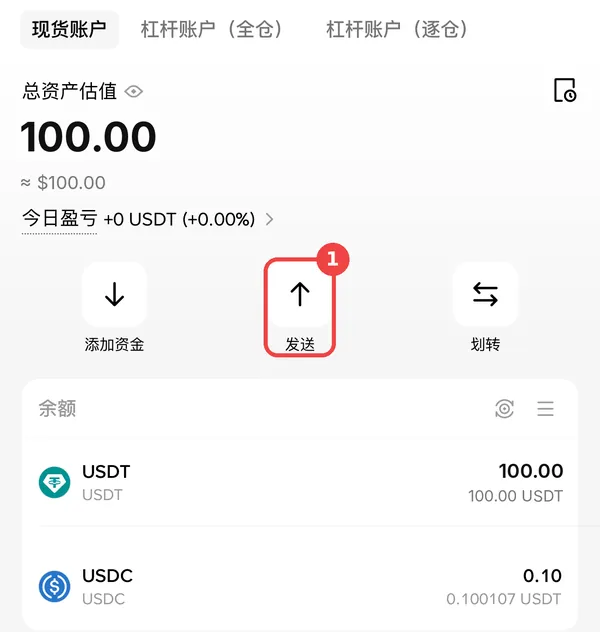
Make sure your USDⓈ-M futures wallet holds USDT. With very small balances, many trades are skipped because they fall below Binance's minimum order size; a few hundred USDT or more is a sensible start.
2. Create a Binance API key
Binance app → Profile → API Management → Create API → System generated.
Give it a name such as "copy" and complete the security check.
Edit restrictions:
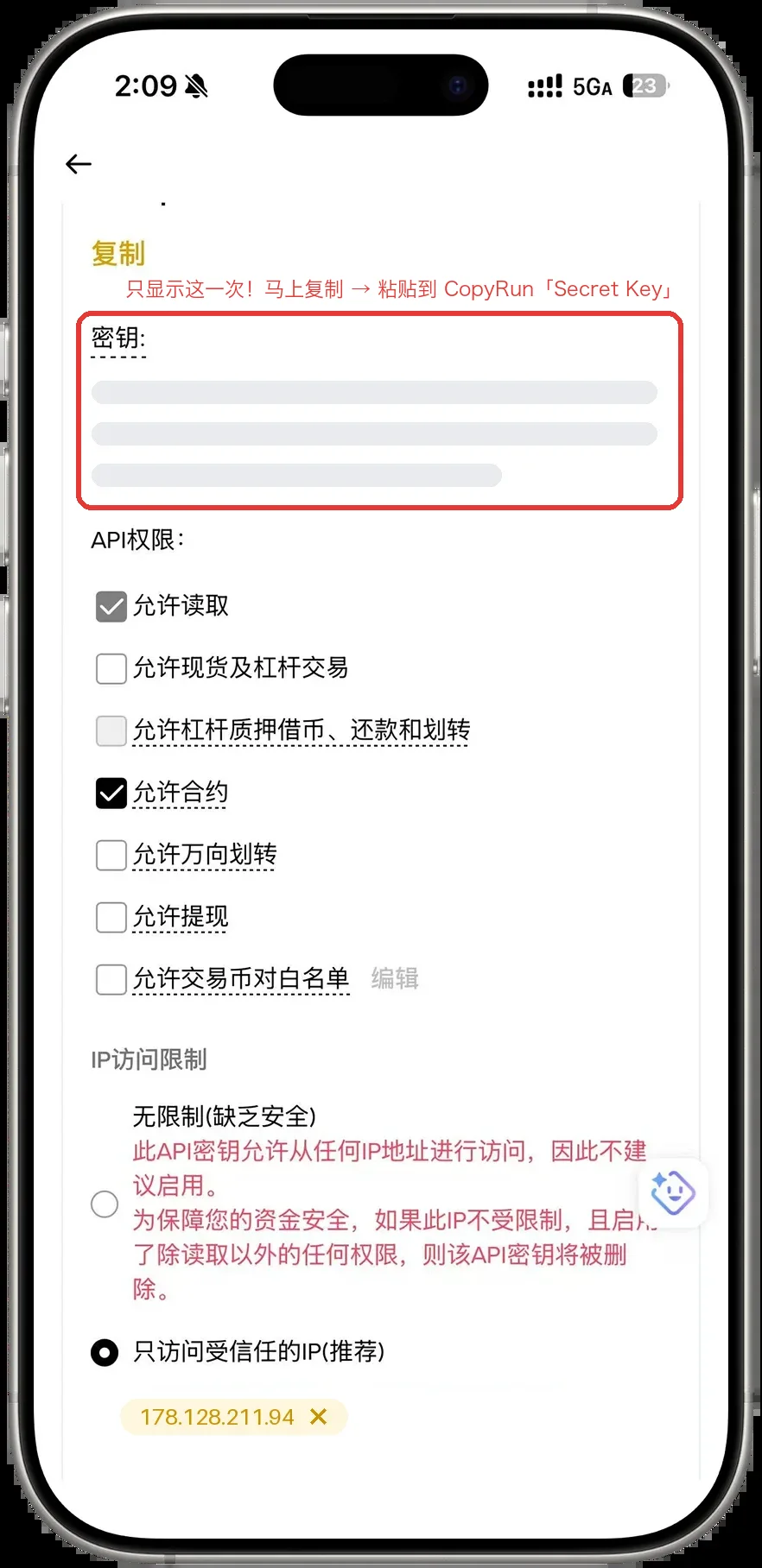
Tick Enable Futures;
Do not enable withdrawals, universal transfer or anything else;
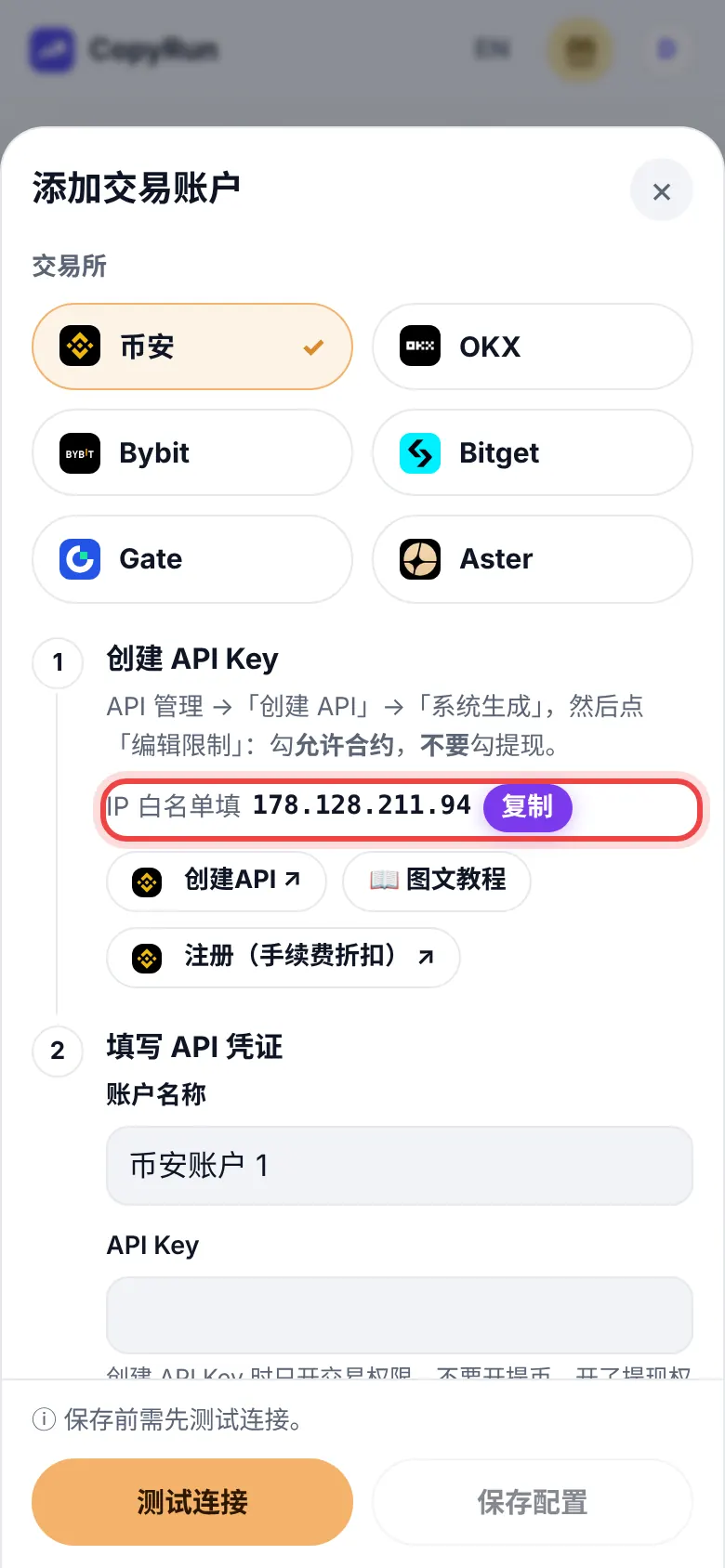
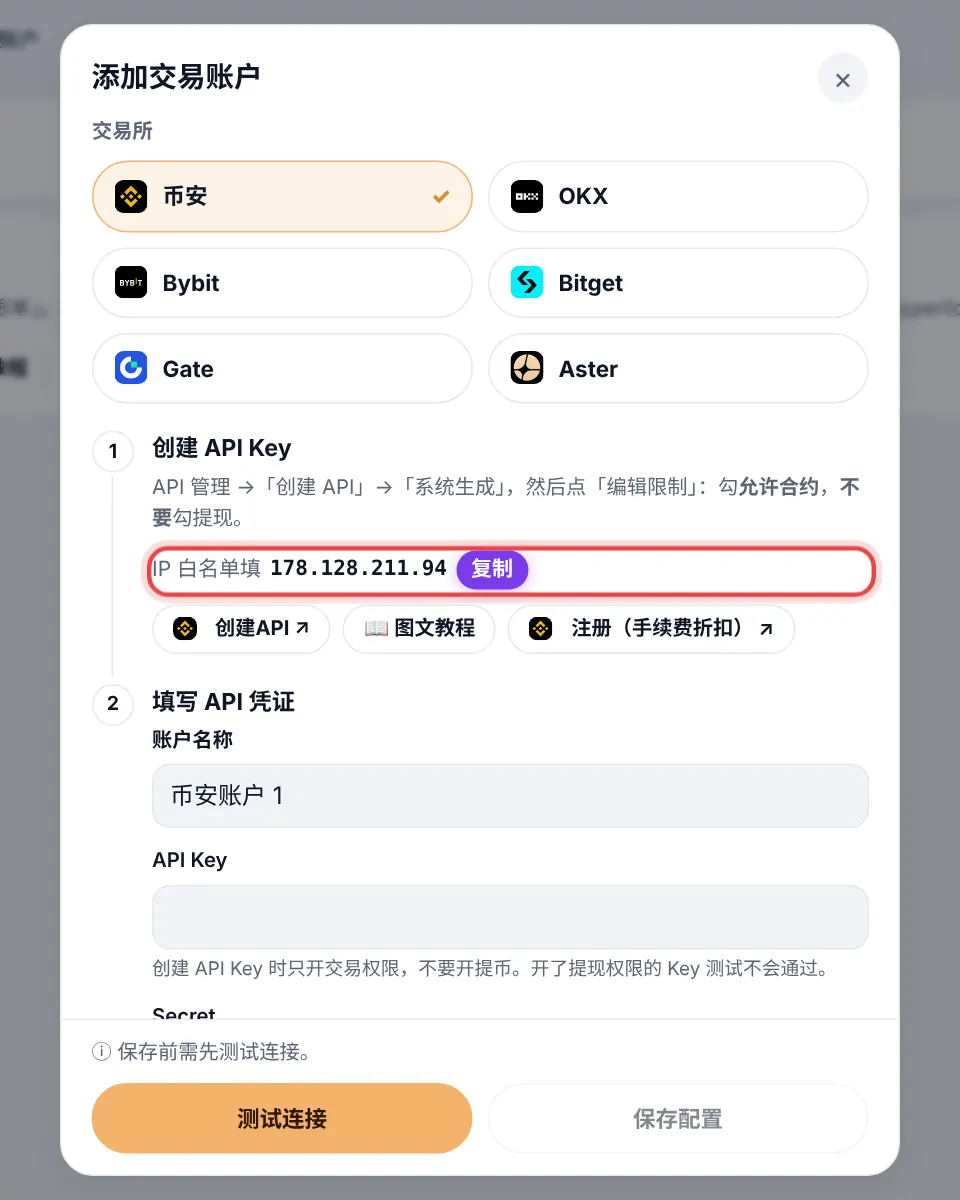
Under IP access, choose "Restrict access to trusted IPs only" and enter:
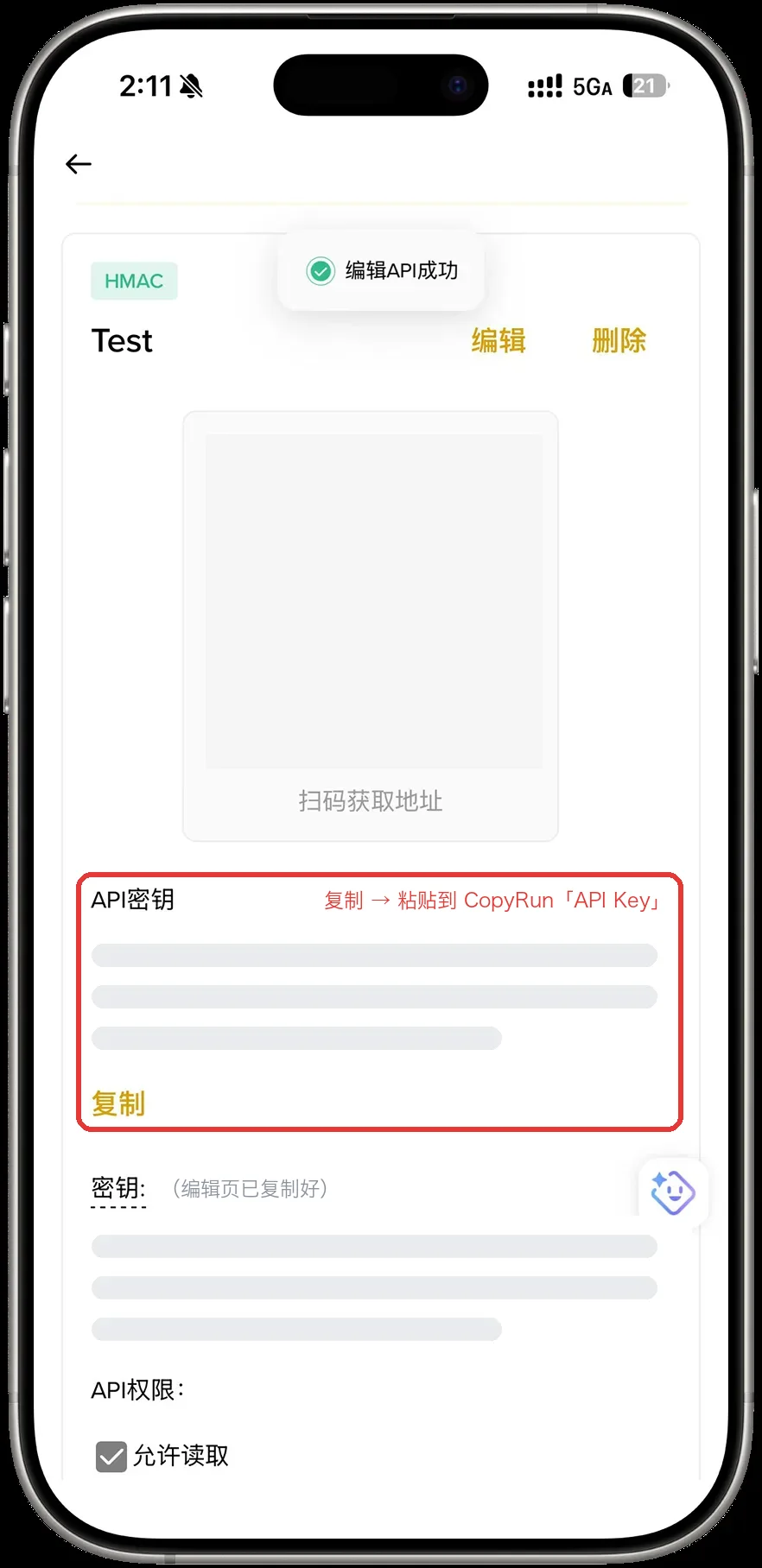
Save, then copy the API Key and Secret Key. The secret is shown only once, so store it first.
With withdrawals off and the IP whitelist on, a leaked key can neither move your money nor be used from anywhere else.
3. Sign up and sign in
Open this site and choose "Create account".
Enter your email, press "Send code", and find the 6-digit code in your inbox (check spam too).
Enter the code, choose a password (8+ characters), pick your country, accept the terms, and press "Create account".
Forgot your password? Use "Reset password" on the sign-in page.
4. Add a lead trader
In the Binance app, open Copy Trading, open the trader you want → Share → copy the link.
Here, open Traders → Add trader → paste the link → Verify and add.
A portfolio ID (the long number in the link) also works. You choose the trader; we do not recommend traders or guarantee anyone's results.
5. Add your Binance account
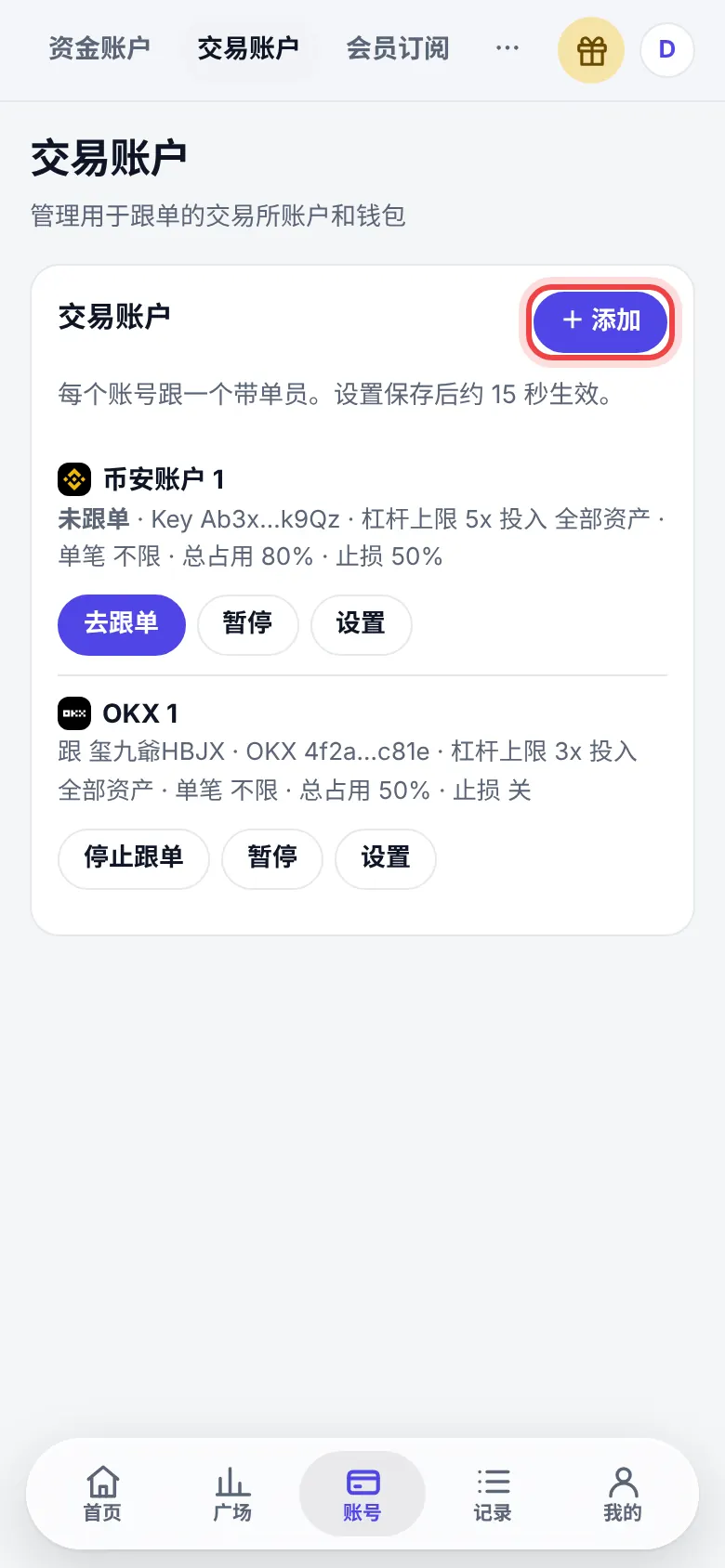
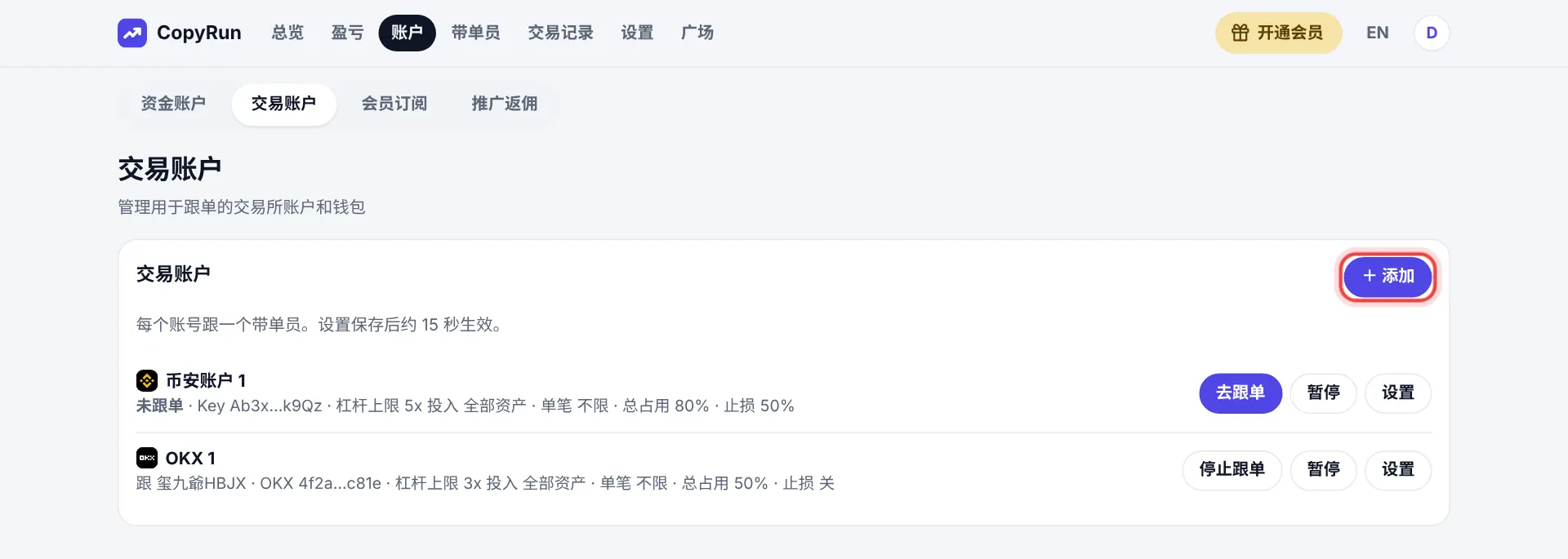
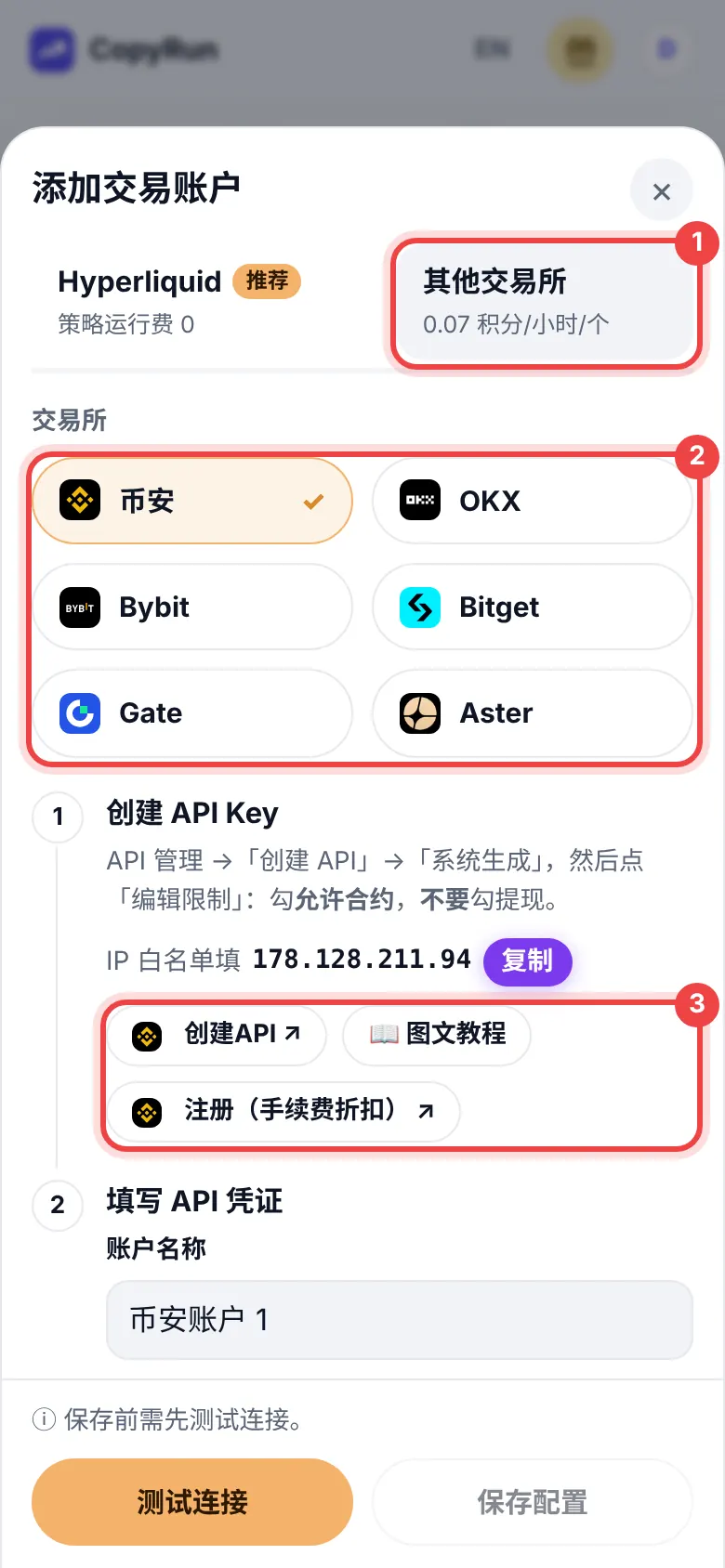
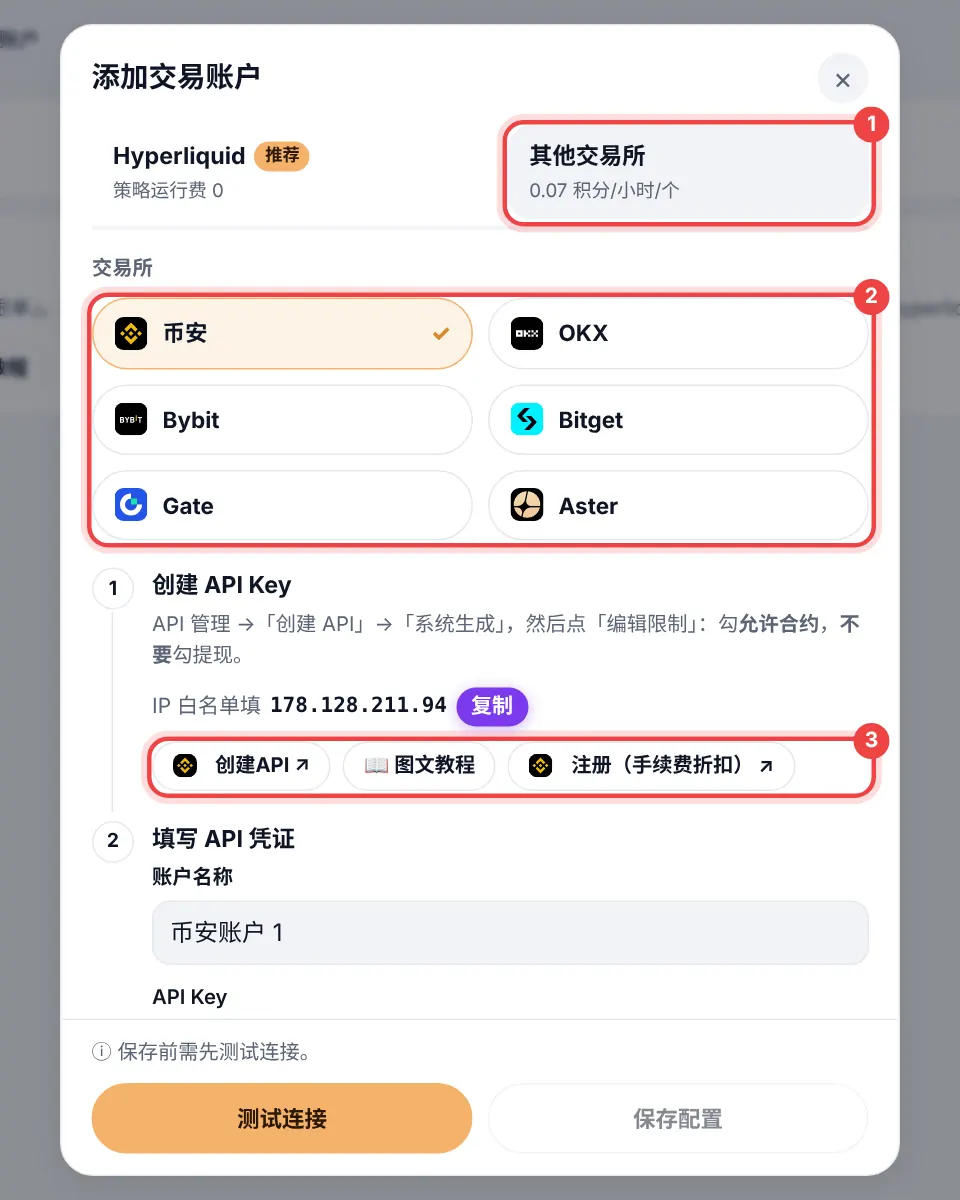
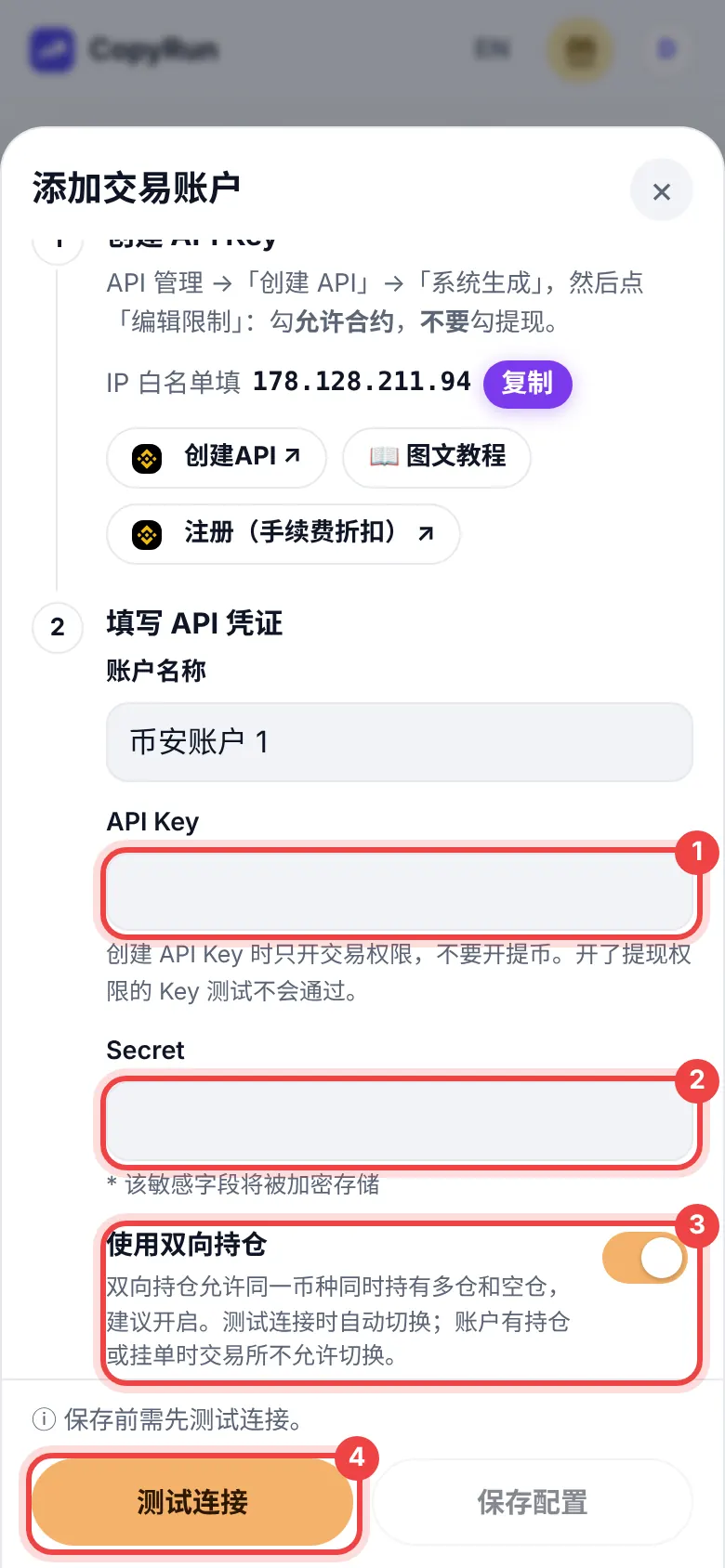
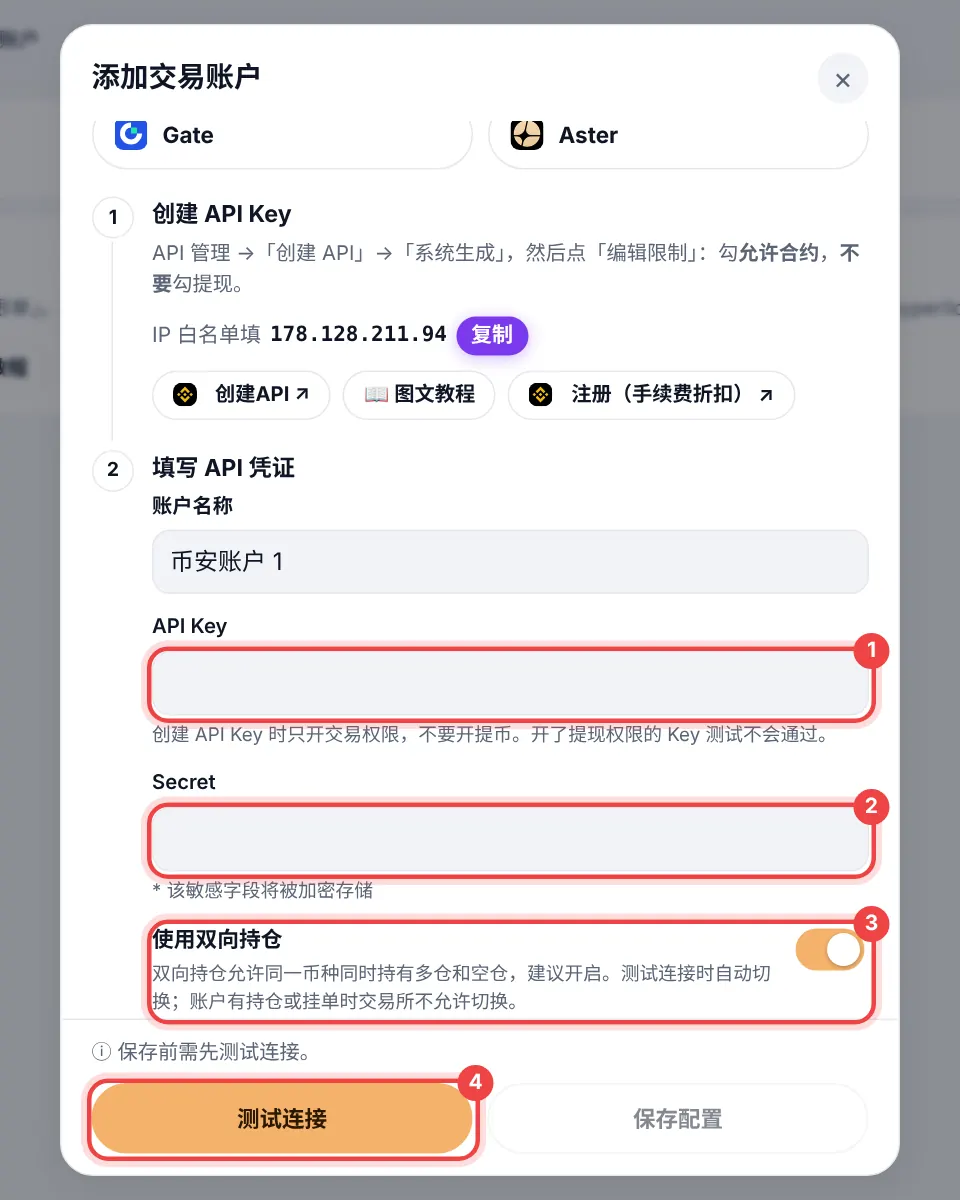
Open Accounts → Add account.
Name: anything, e.g. "Main".
Trader to follow: the one you added in step 4.
Paste the API key and secret from step 2.
Press "Test connection". We check with Binance straight away: the key works, Futures is enabled, withdrawals are off, and (with "Use Hedge Mode" on) we switch the account to Hedge Mode for you. Then press "Save". Any problem is shown with the reason.
Each API key can be added once. To copy on several Binance accounts, create one key per account and add each.
Copying on OKX / Bybit
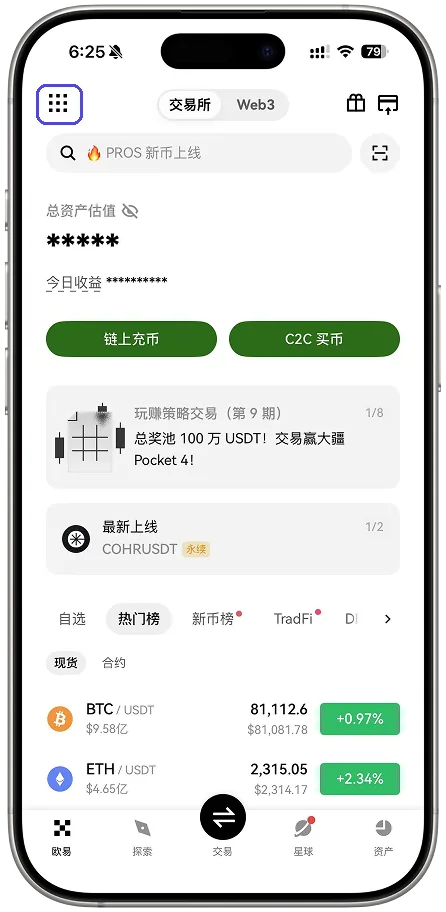
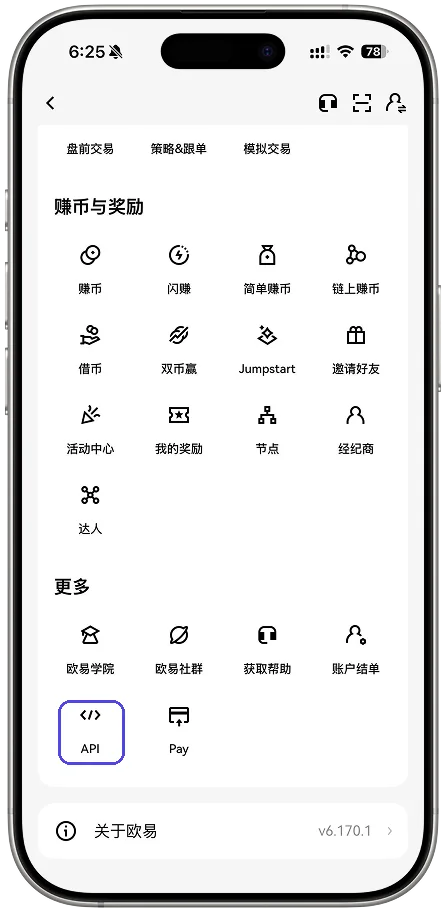
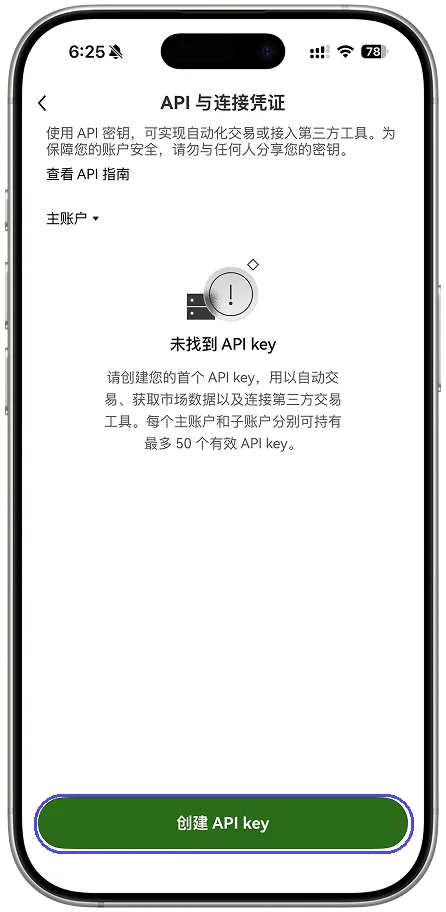
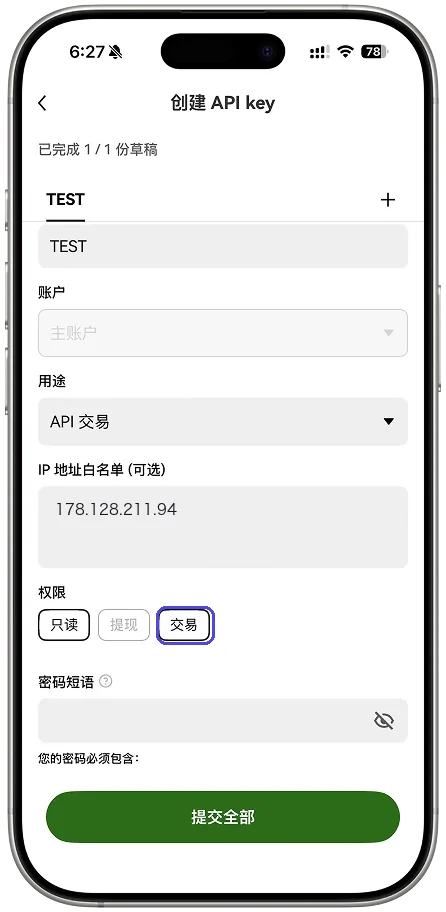
Same as Binance: create a trade-only API key (no withdrawals) → whitelist our IP → Add account, pick the exchange, "Test connection" → "Save". Differences:
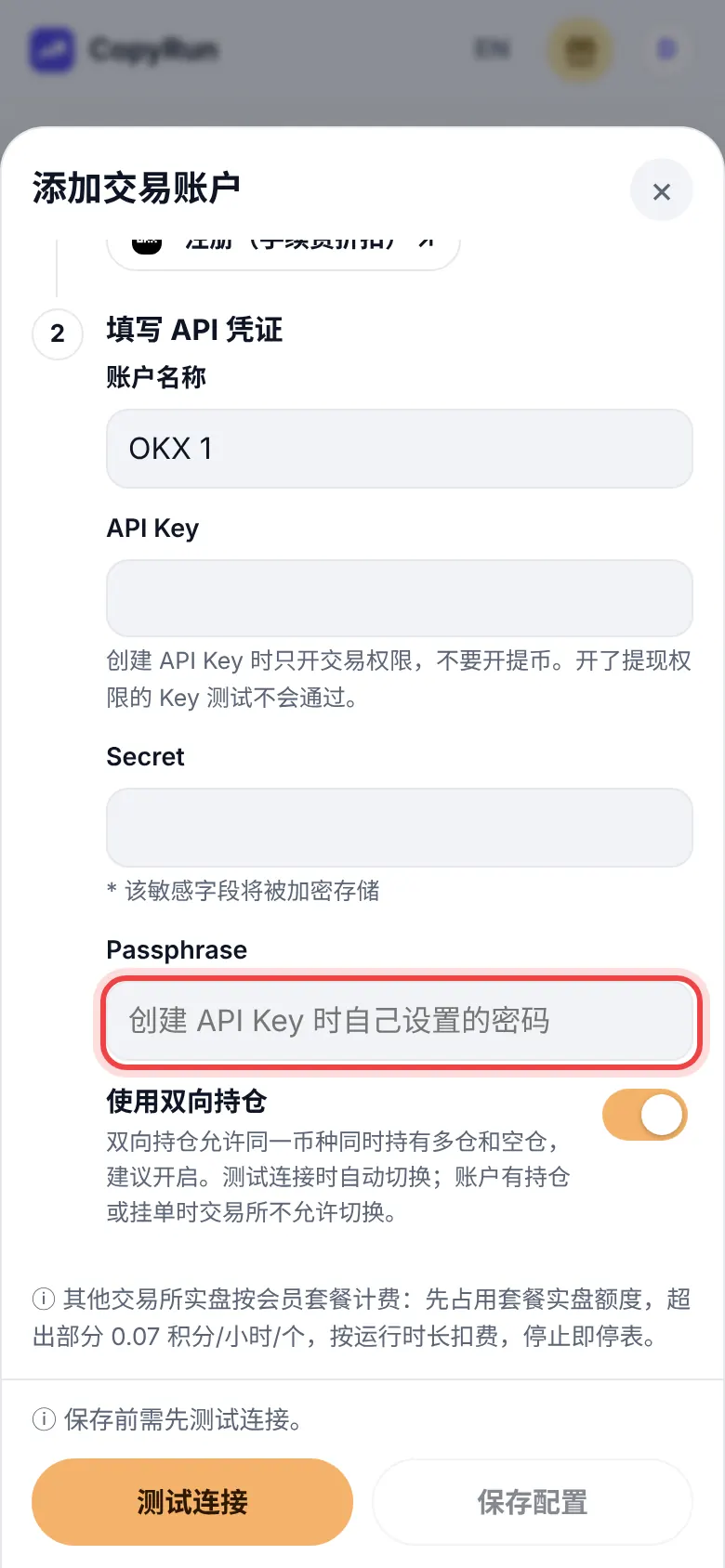
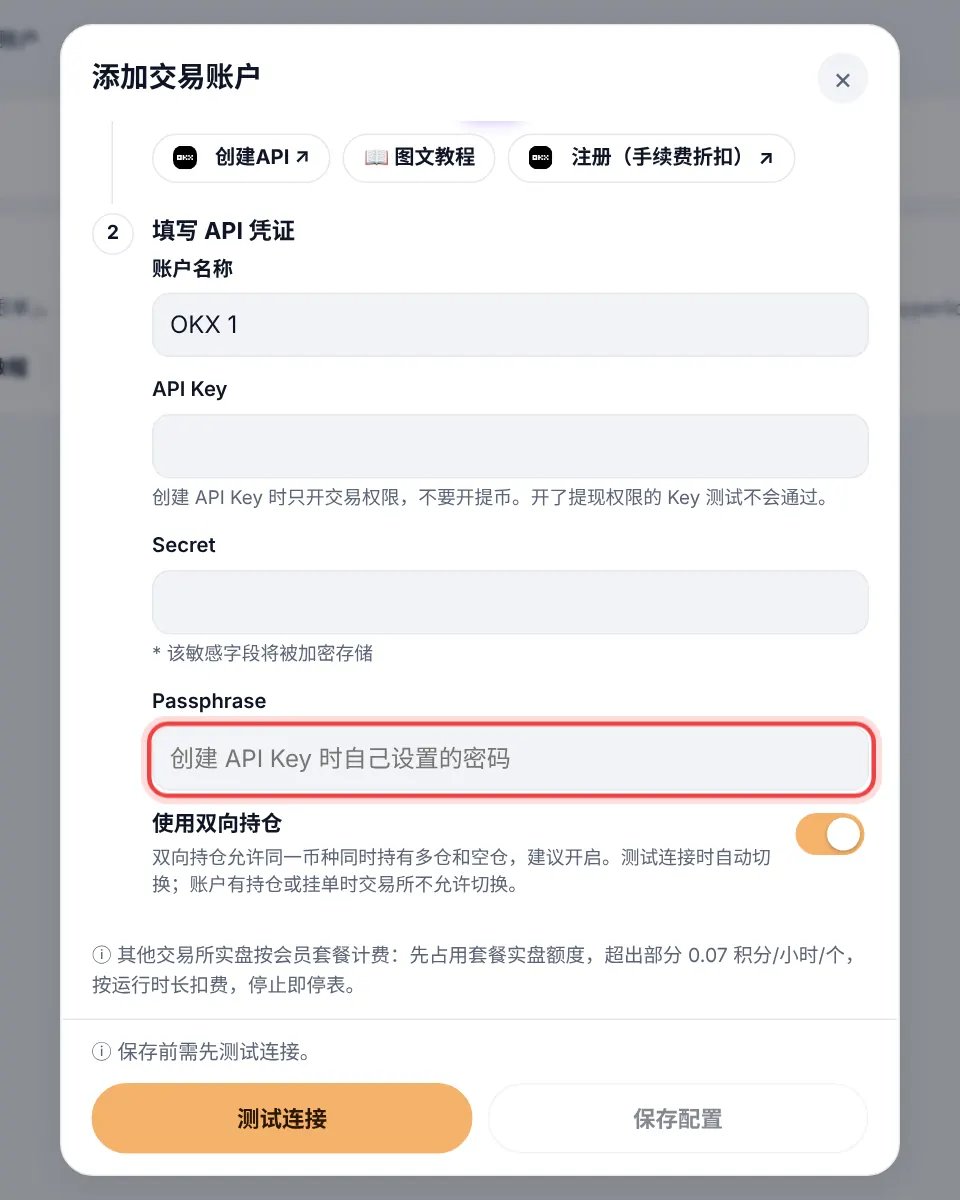
OKX: create a key with only Trade ticked and Perpetual selected under trading markets (never Earn, Borrow, Transfer or Withdraw), switch on the IP whitelist with our server IP, and enter its passphrase here too. OKX deletes unbound trading keys after 14 idle days, so the IP is required. The account mode must be Futures or higher. Positions must be in long/short mode; with the switch on we change it for you when testing (OKX refuses while positions or orders are open).
Bybit: the account must be a Unified Trading Account. Create a system-generated key on the website (not the app), Read-Write, IP-restricted to our server, with Contract → Orders and Positions (never Withdraw). Positions must be in Hedge Mode; we can switch it for you the same way.
If a trader's coin is not listed on that exchange, that trade is skipped.
Copying on Bitget / Gate / Aster
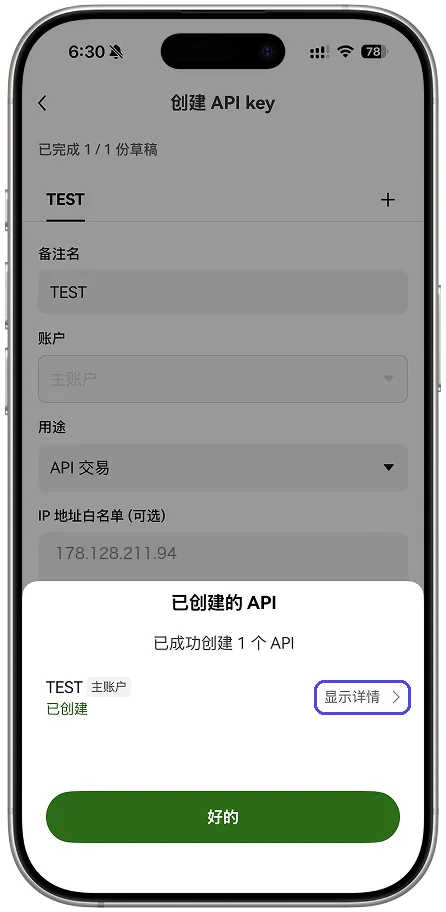
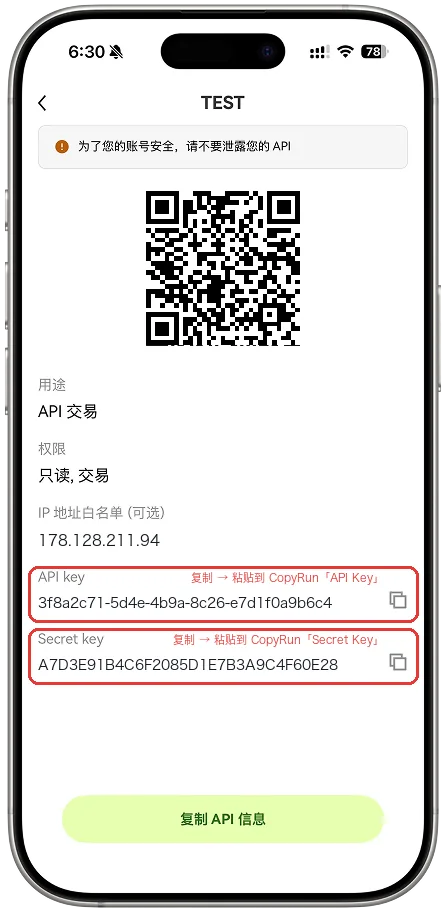
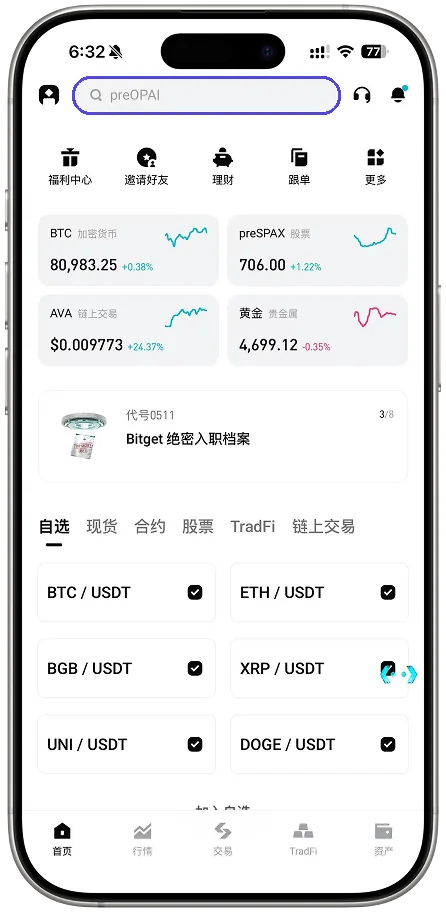
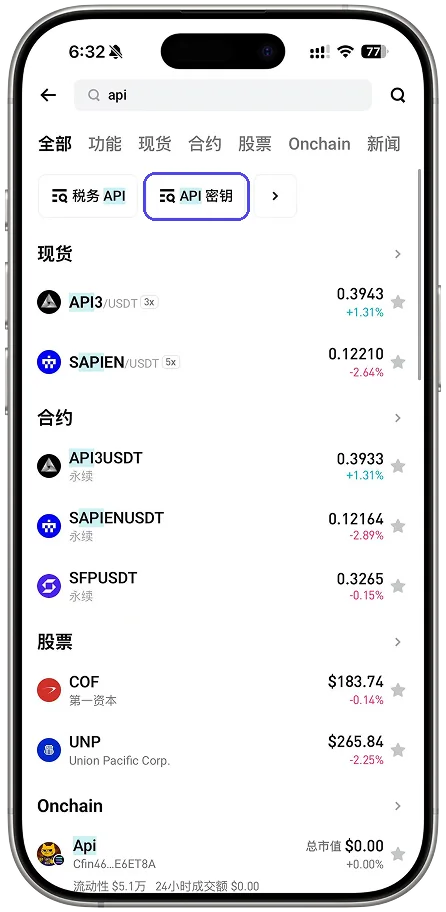
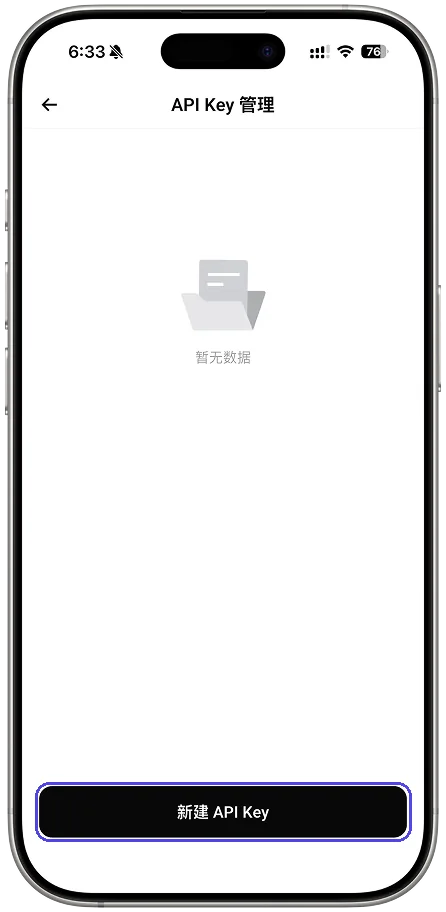
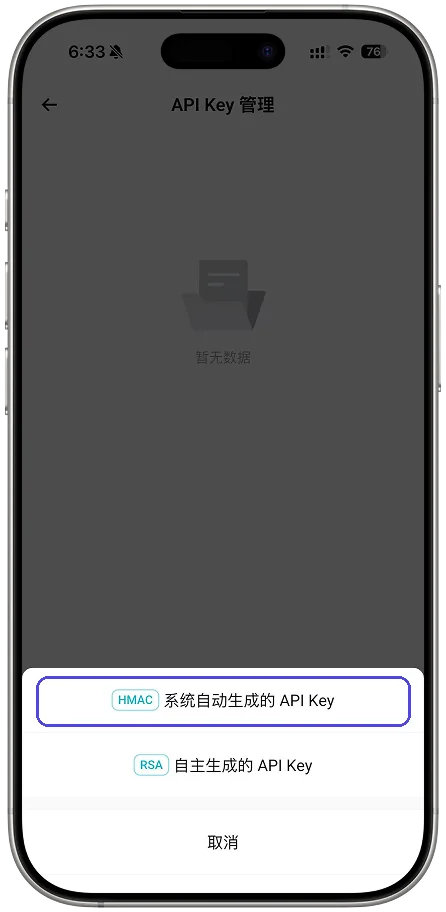
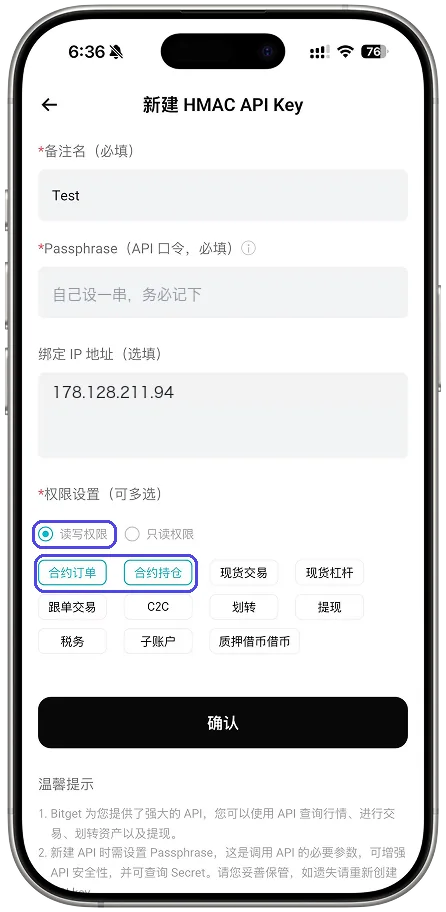
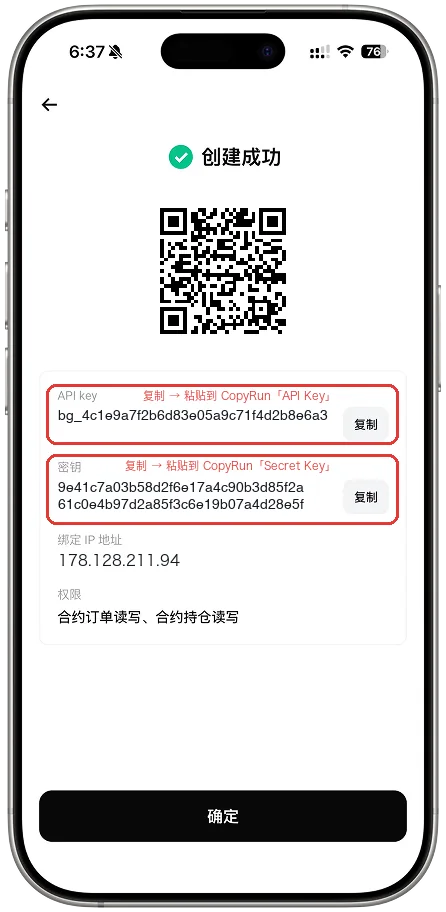
Bitget: create a system-generated key, Read-Write with futures orders and positions, no withdrawals, bound to our server IP, and enter its passphrase here. Classic accounts only for now; Unified (UTA) accounts are not supported yet.
Gate: create an APIv4 key with perpetual futures read/write, no withdrawals, IP-whitelisted to our server. Gate does not expose key permissions, so make sure withdrawals are off yourself.
Aster (on-chain): on Aster's API Wallet page switch to Pro API, create and authorise an API wallet with your main wallet, copy its private key, then choose "Aster" here and enter the main wallet address and the API wallet key. Never enter your main wallet's key or seed phrase.
All three need Hedge Mode; with the switch on we change it when testing (exchanges refuse while positions or orders are open).
Copying on Hyperliquid
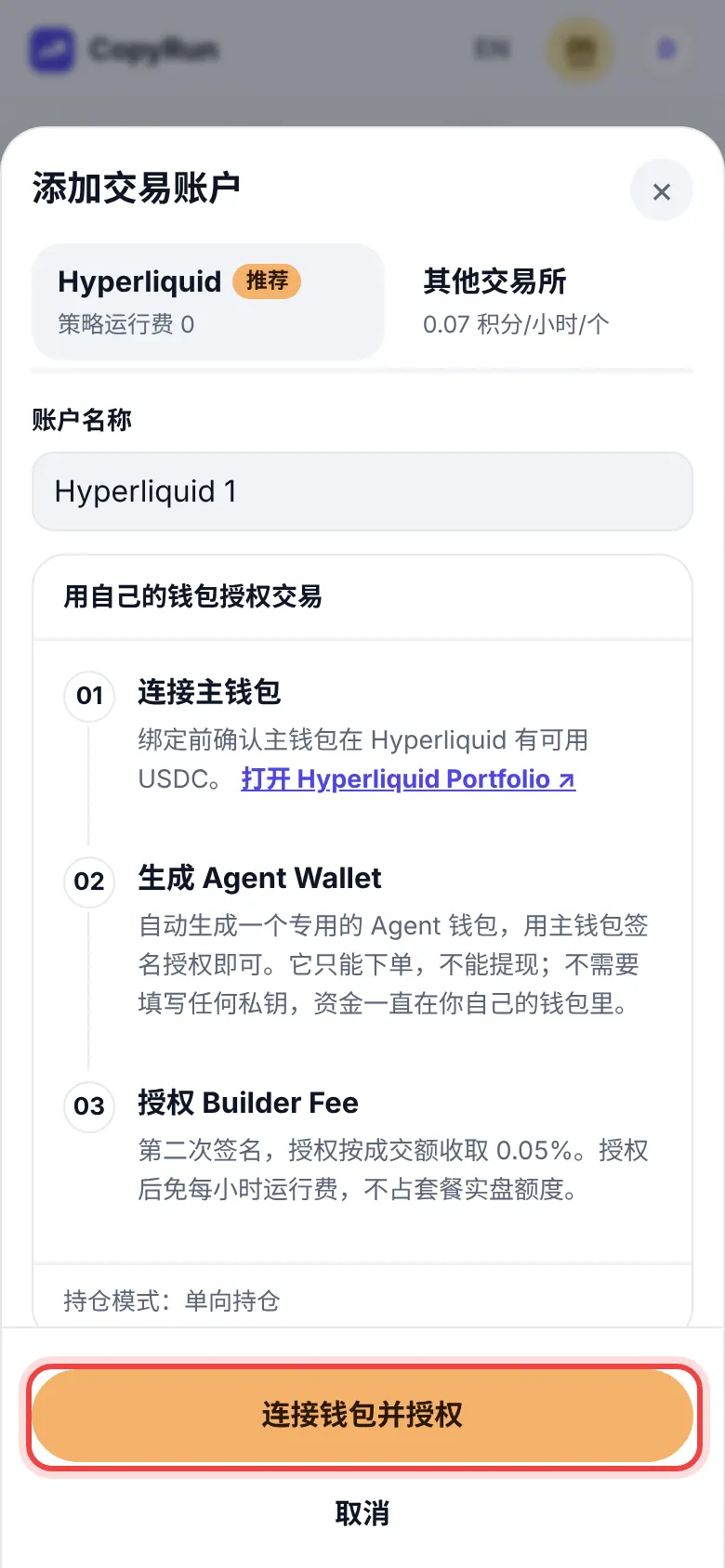
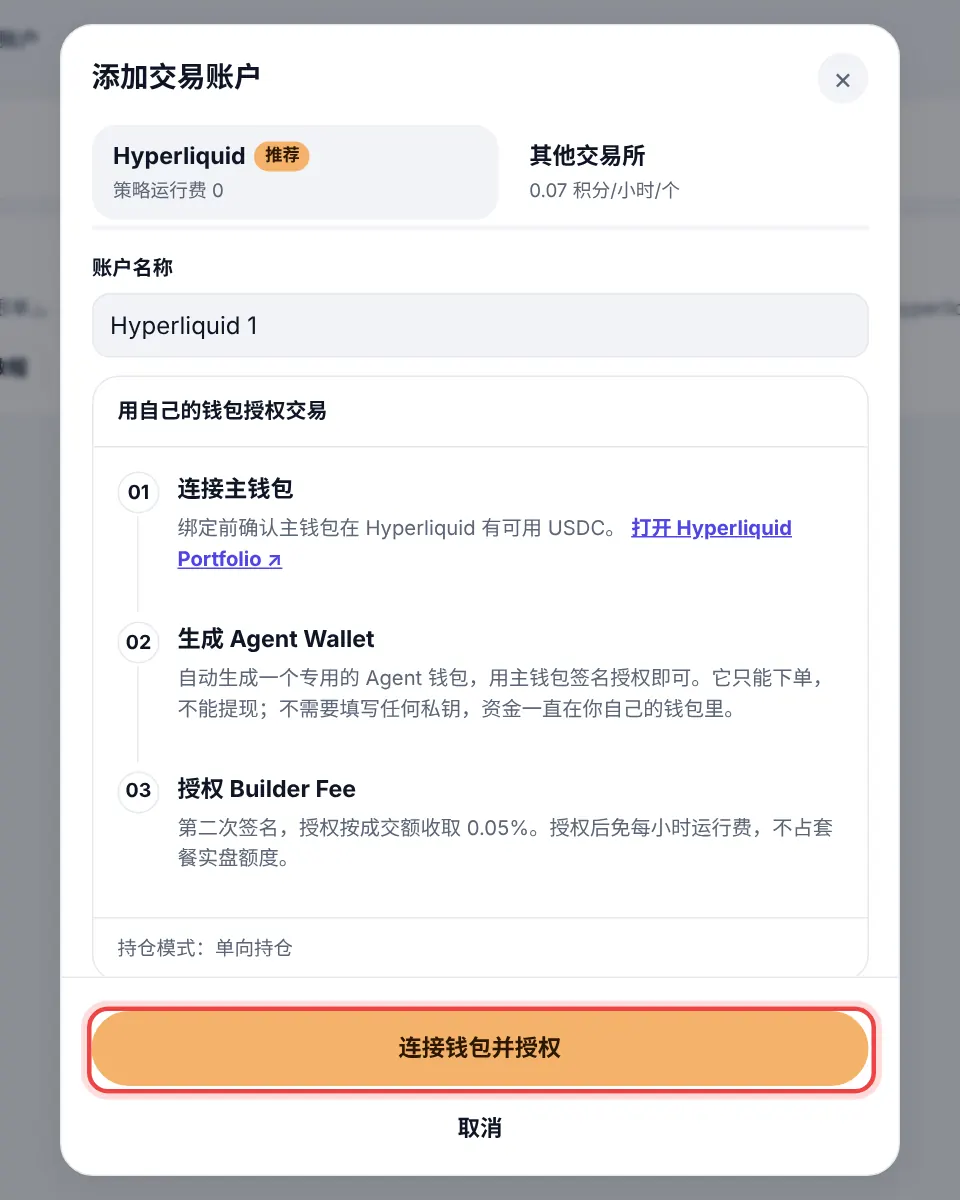
Besides Binance you can copy straight onto Hyperliquid (an on-chain perps exchange). Funds stay in your own wallet; we only get an "API wallet", which can trade but cannot withdraw.
Create an API wallet (any name, e.g. copyrun), press Authorize and sign with your main wallet.
Copy the API wallet's private key (shown once). Never share your main wallet's key or seed phrase.
Here: Accounts → Add account → Hyperliquid. Enter the main wallet address and the API wallet key, press "Test connection".
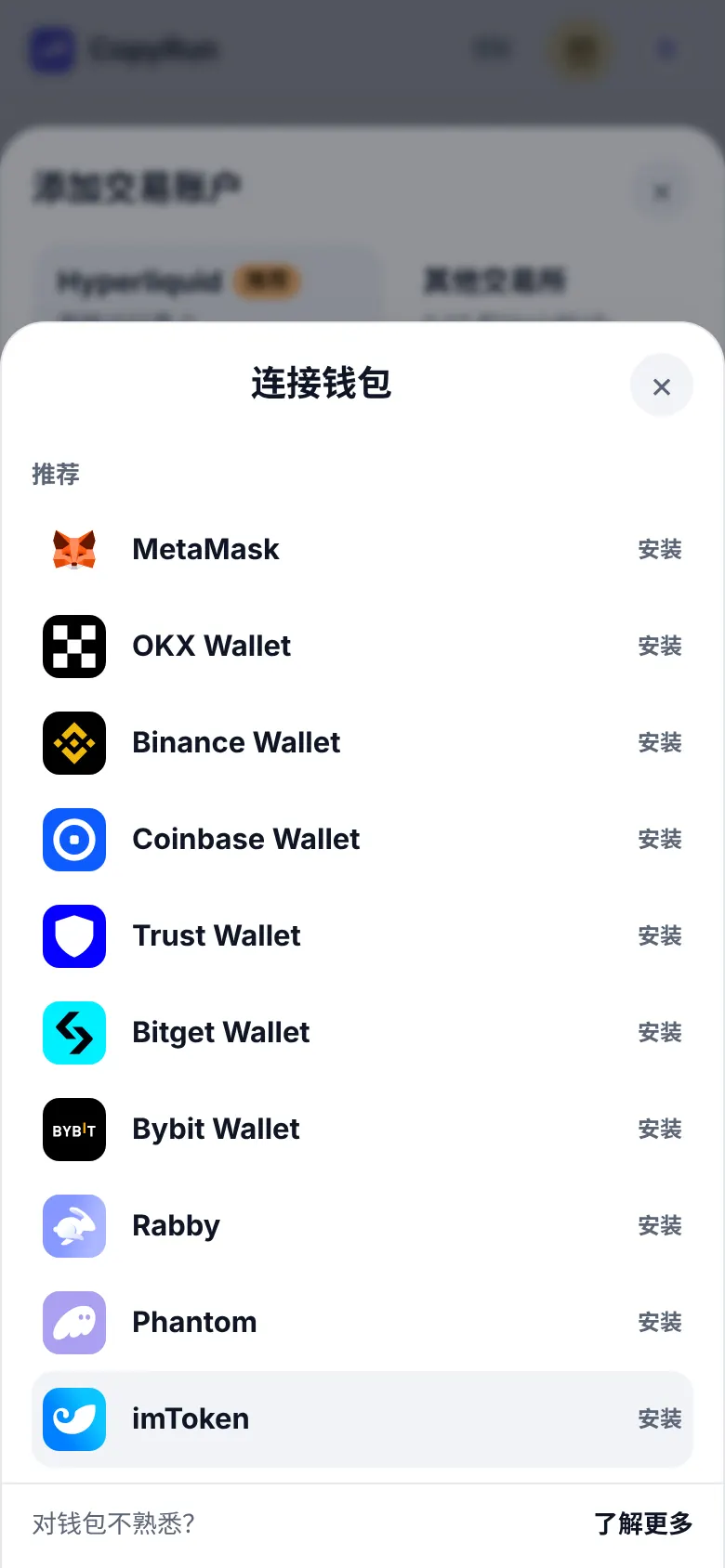
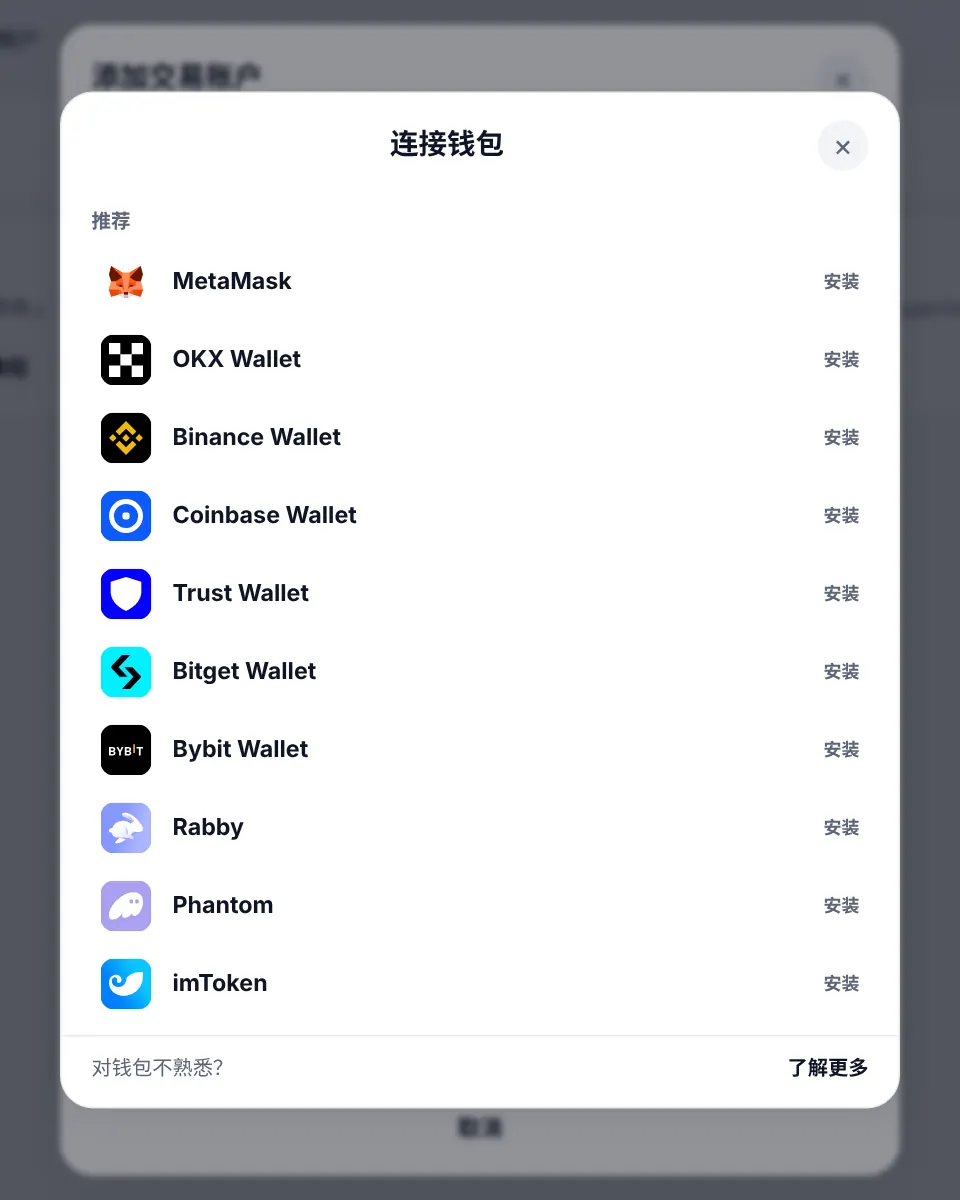
Approve the builder fee (recommended): open this site in your wallet app's browser (MetaMask, OKX Wallet, Rabby…) and press "Approve with wallet". The account then pays no hourly fee and uses no plan slot; instead each fill pays the percentage shown, taken by Hyperliquid at fill time. Without it the account pays the hourly fee.
Note: Hyperliquid is one-way per coin, so a coin cannot be long and short at once; if the trader holds both, the opposite side is skipped. Coins listed only on Hyperliquid (not on Binance) are not copied yet.
6. Set risk limits (recommended)
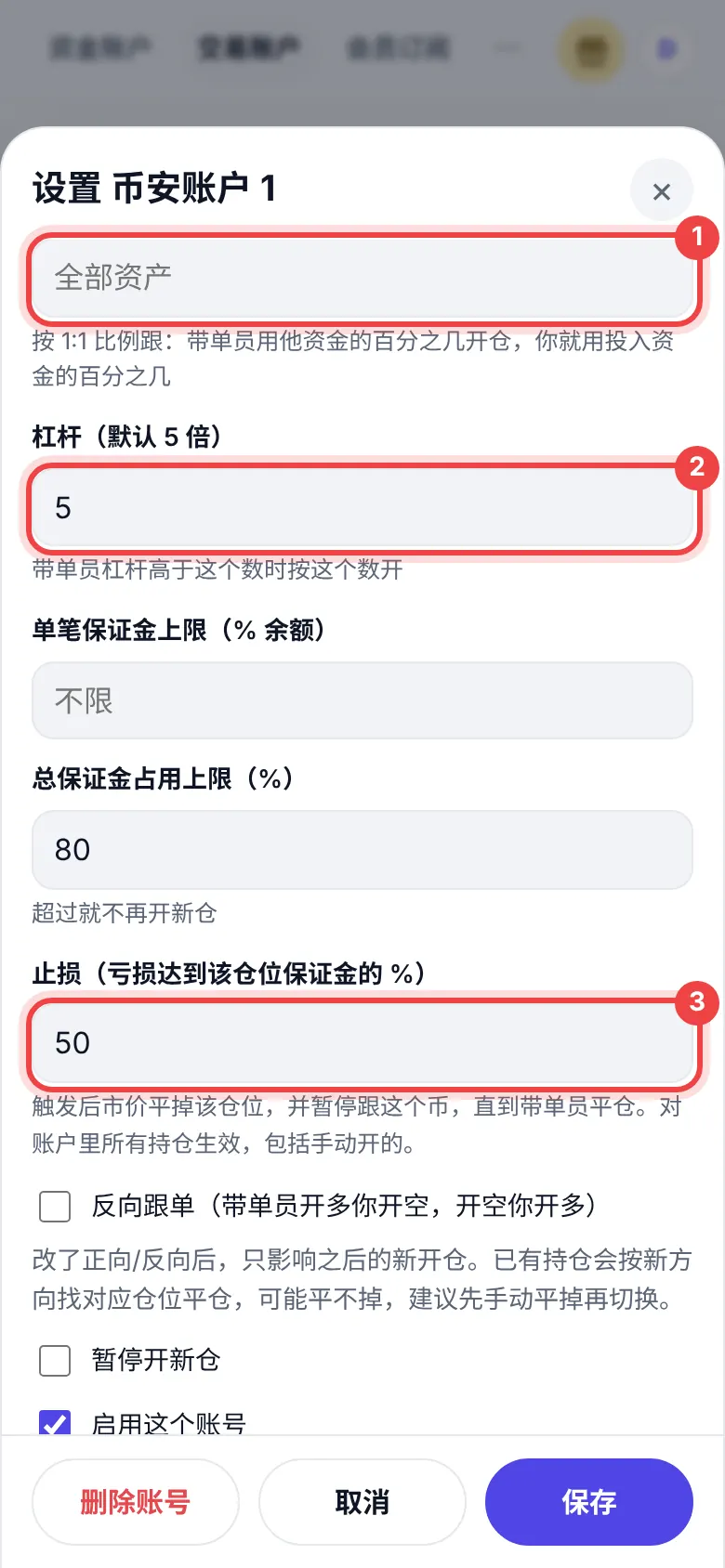
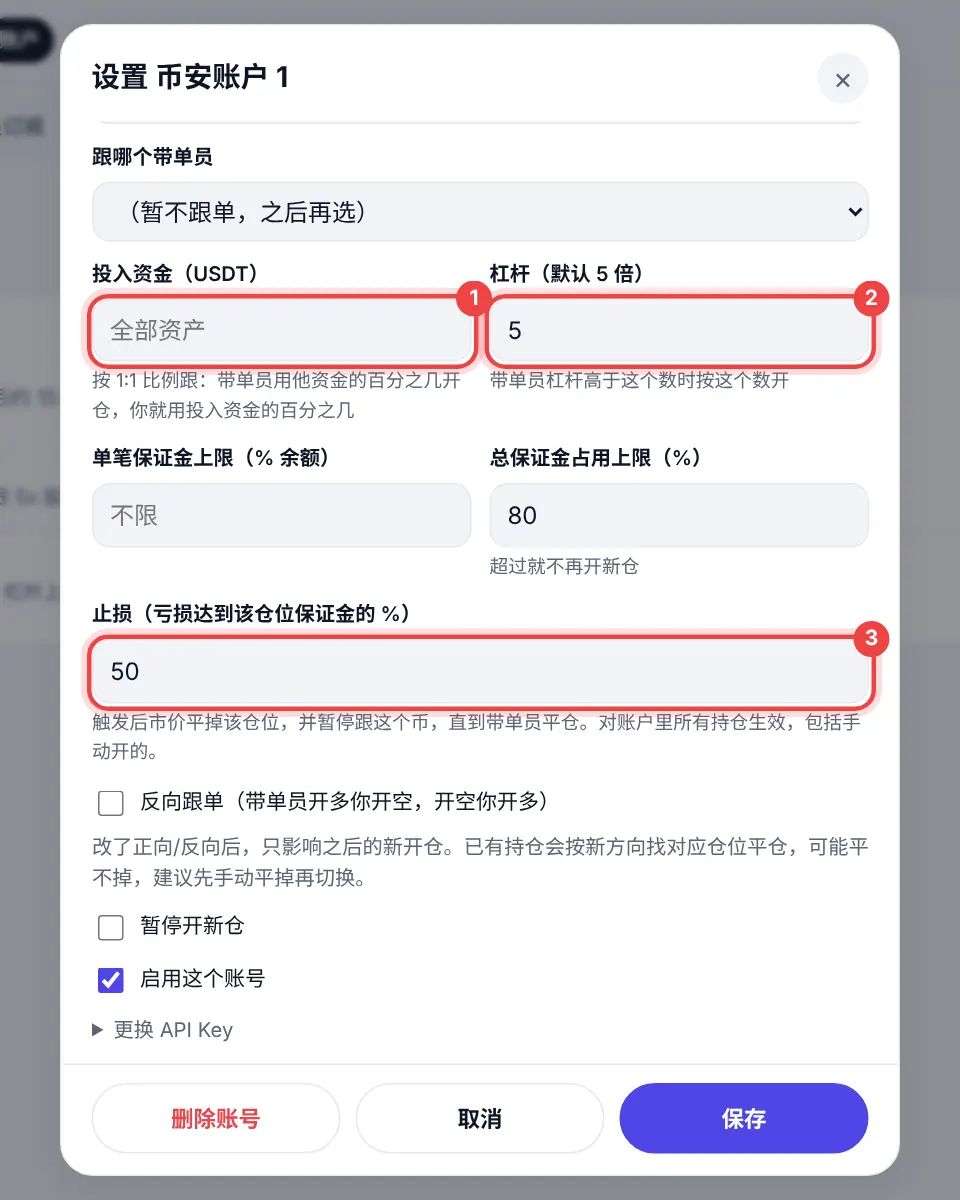
Set these when adding or editing an account; changes apply within about 15 seconds.
Setting
What it does
Suggestion
Size multiplier
1 uses the same share of margin as the trader; 2 doubles it, 0.5 halves it.
Start at 1 or lower
Max leverage
Caps your leverage whatever the trader uses.
5 or less
Max margin per order
Each order uses at most this % of your equity.
As needed
Max total margin used
No new positions once all positions together use this % of equity.
50–70%
Stop-loss
When a position loses this % of its margin, it is closed at market and that symbol is not copied again until the trader closes it.
Per your risk tolerance
The stop-loss applies to every position in the account, including ones you opened by hand.
7. Resume copying
New accounts start paused so you can check everything first. When ready, press "Resume" on the account in Accounts. From then on the trader's new positions are copied.
Only new moves are copied; positions the trader already holds are not opened retroactively.
8. Subscribe
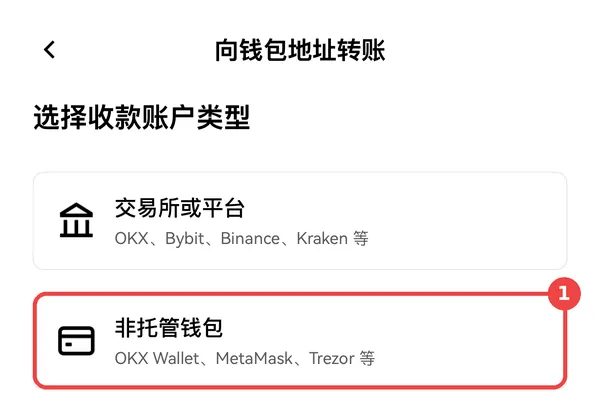
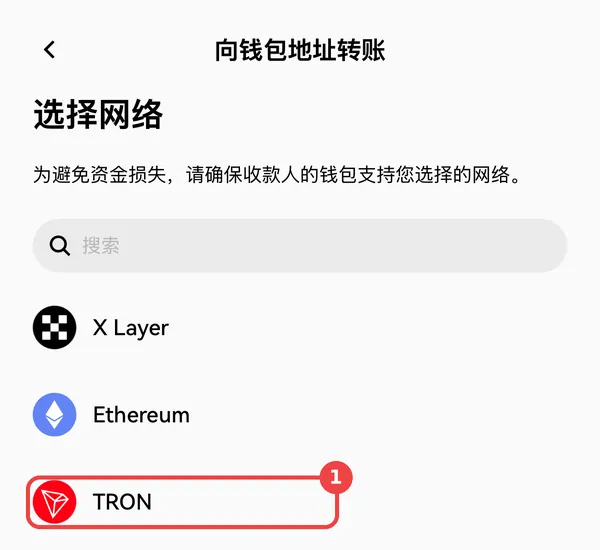
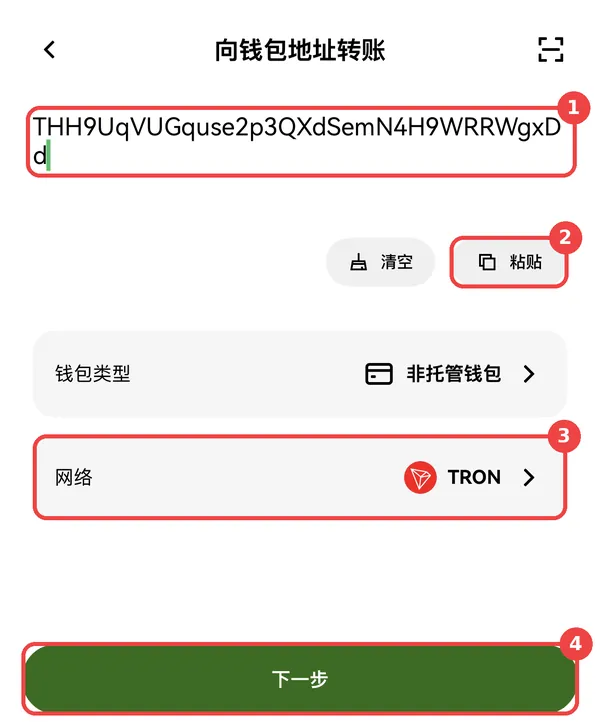
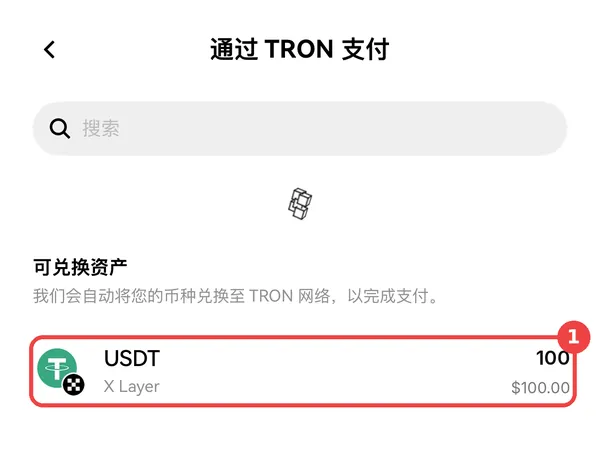
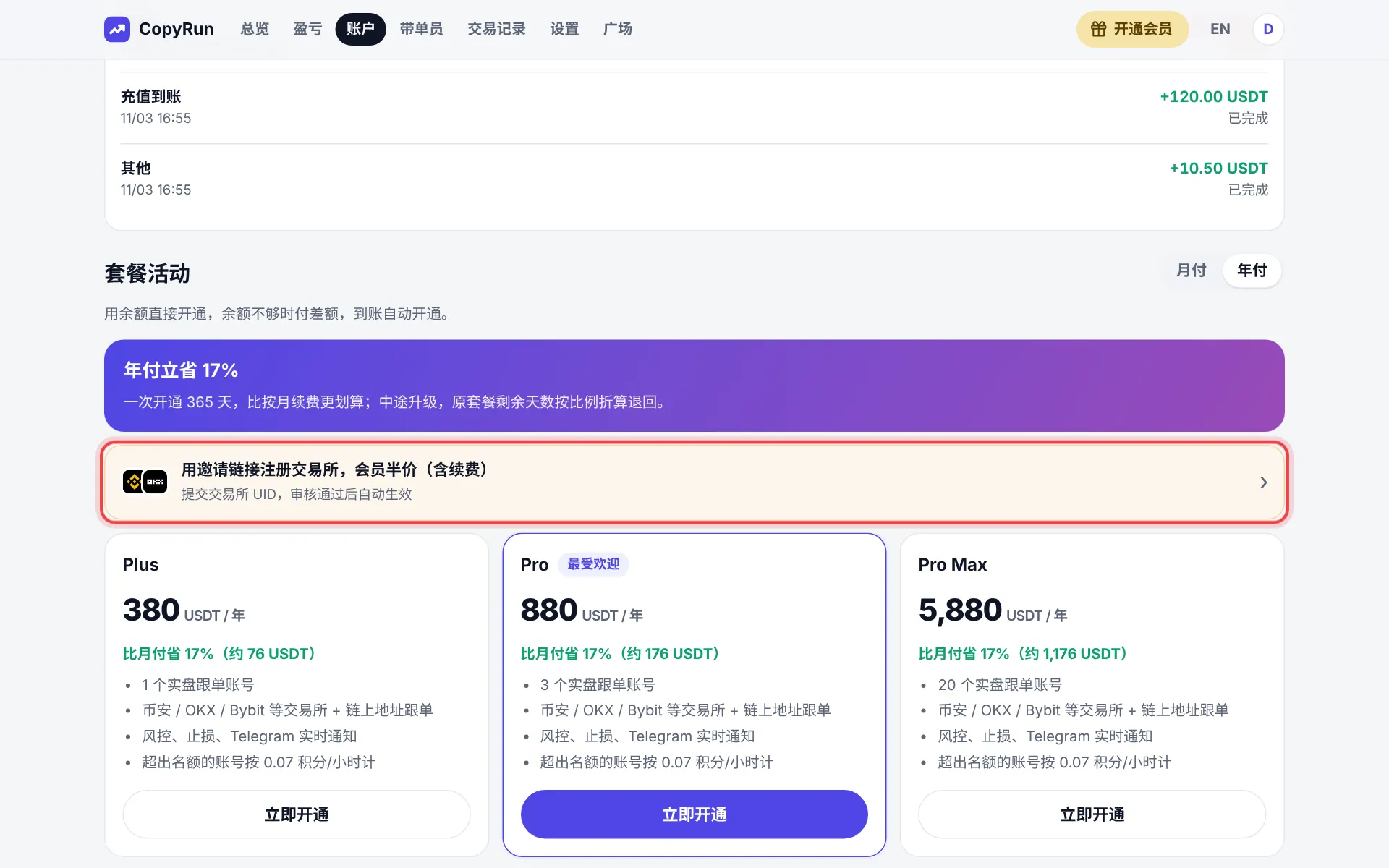
Open Subscription, pick a length, press "Get payment details".
You will see an address and an exact amount with 4 decimals, e.g. 29.0137.
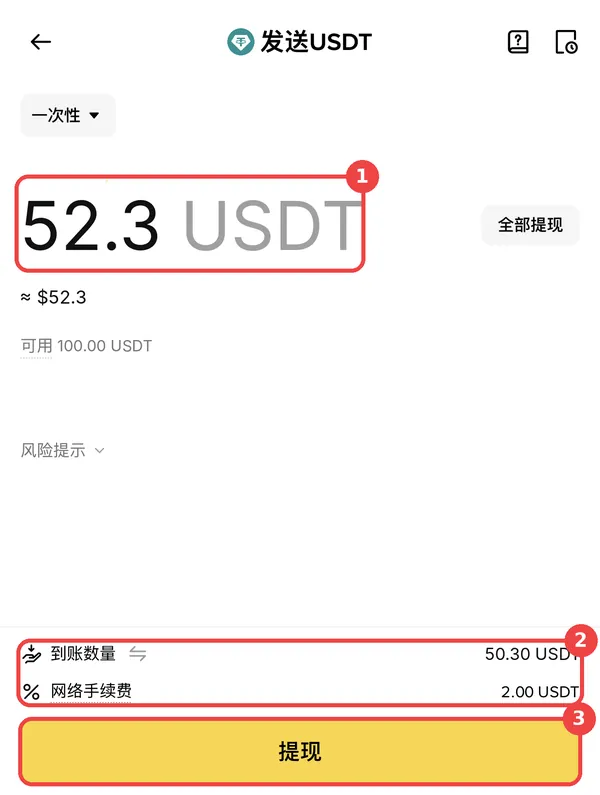
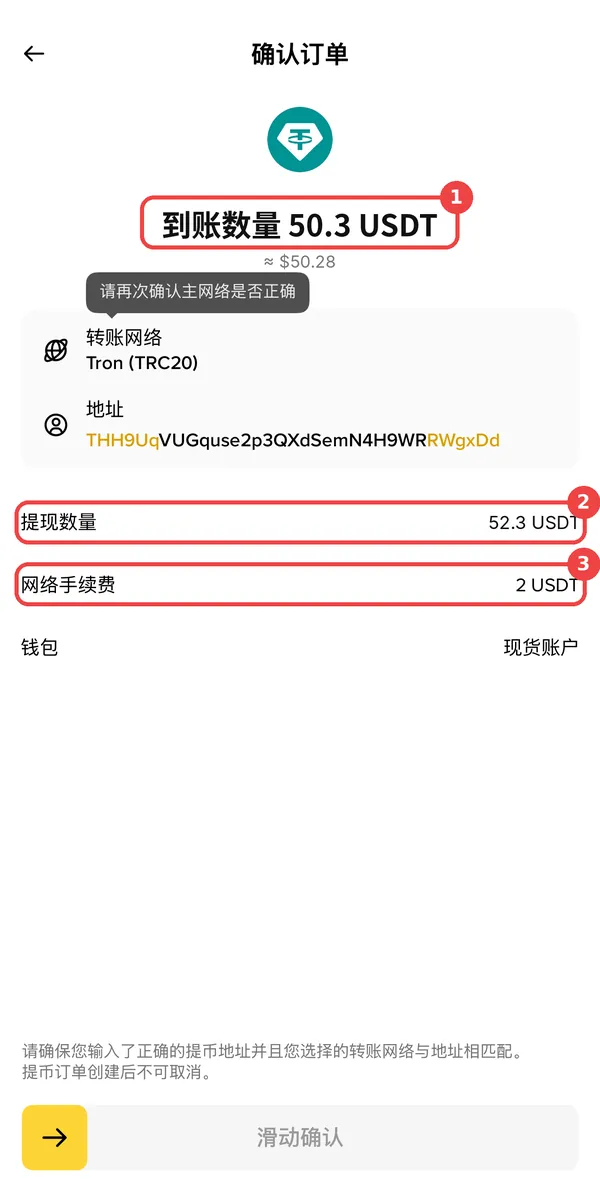
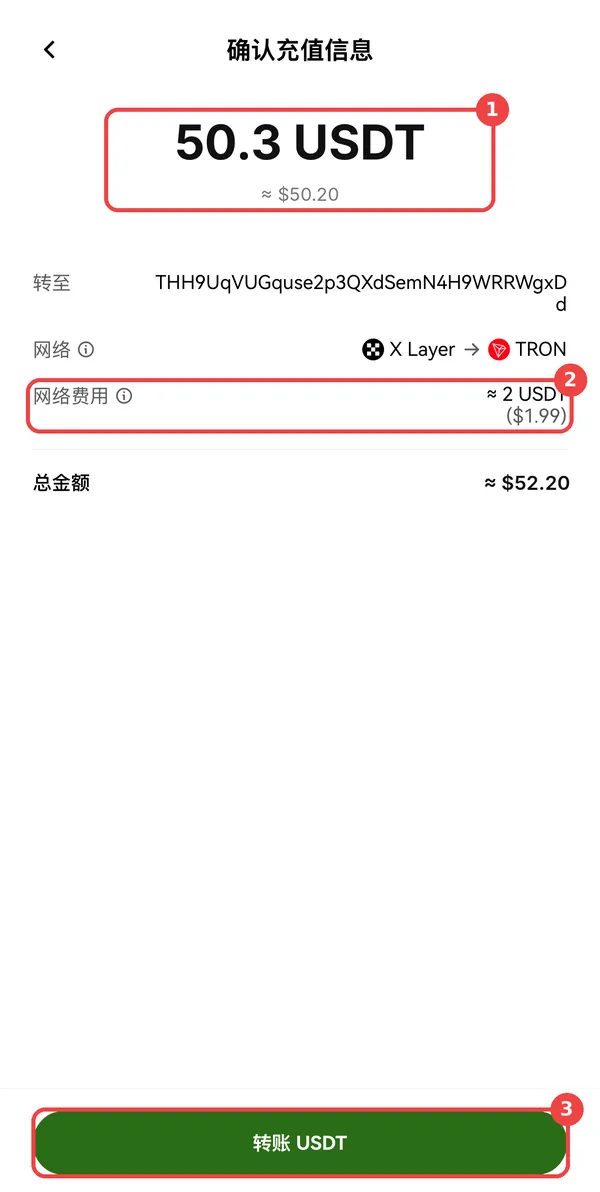
Send USDT on the TRON (TRC20) network for exactly that amount.
Access starts a few minutes after the transfer confirms.
The amount must match to the last decimal; it is how we know the payment is yours. If you withdraw from an exchange, make sure the fee is not deducted from the amount that arrives. TRC20 only; other networks cannot be recovered.
When a subscription lapses, no new positions are opened, but closes still follow the trader so nothing is left unmanaged. Renewing resumes copying automatically.
9. Turn on Telegram alerts
In Telegram, message @BotFather with /newbot and follow the prompts to get a bot token.
Open your new bot and press Start (or send any message).
Message @userinfobot to get your chat ID (a number).
Here, open Settings, enter the token and chat ID, tick "Send alerts", and press "Send test".
10. Day to day
Status bar: blue means running; orange means paused or no active subscription; red means something is wrong.
Overview: equity, unrealized P&L, positions and margin used per account; red above 80%.
P&L: daily results and per-symbol totals over 7, 30 or 90 days, including fees and funding.
Activity: every trade and whether it filled, was skipped or failed, with the reason.
Pause all: the button at the top stops new positions; closes still follow.
11. FAQ
The trader opened a position. Why didn't I?
Check that trade in Activity:
Below minimum: your proportional size was smaller than Binance allows. Add funds or raise the multiplier.
Signal too old: it arrived more than 20 minutes late, so it was skipped.
Limit placed / Limit expired: the price had moved more than 0.5%, so a limit order was placed and cancelled after 20 minutes unfilled.
Margin limit reached: your own risk limit stopped it.
Not enough balance: not enough available USDT.
Paused / Subscription expired: resume the account or renew.
Failed: not Hedge Mode / API key: check steps 1 and 2.
Pause vs. disable?
Paused: no new positions, closes still follow. Disabled: the account is not touched at all, closes included; you manage open positions in Binance yourself.
Is my money safe?
Funds always stay in your own Binance account. We can only place orders with the key you give us and cannot withdraw. Secrets are stored encrypted and never displayed. With withdrawals off and the IP whitelist on, nothing can be moved out through this site.
Can I step in manually?
Yes, close or adjust in Binance at any time. If you close a position yourself, the trader's later close is skipped as "nothing to close", which is expected.
How do I stop?
Disable and delete the account in Accounts, then delete the API key in Binance.
Copy-trading is risky and you can lose all your margin. Please read the terms and risk disclosure. Contact:
 币安 Binance
 欧易 OKX
 Bybit
 Bitget
 Gate
 Aster(链上,不用 IP)
 Hyperliquid(链上,不用 API Key)